Install OS X 10.11 El Capitan on Hackintosh (Vanilla)
Warning: Please follow these instructions at
your own risk. I am not responsible for any damage or information loss
that could result from following this guide. Also, note that installing
OS X on PC is illegal. Please buy a real Mac if you're satisfied with
your Hackintosh. This guide is for evaluation purposes only.
Search for "El Capitan" and click Download. The download is completely free if you're running OS X 10.9+.
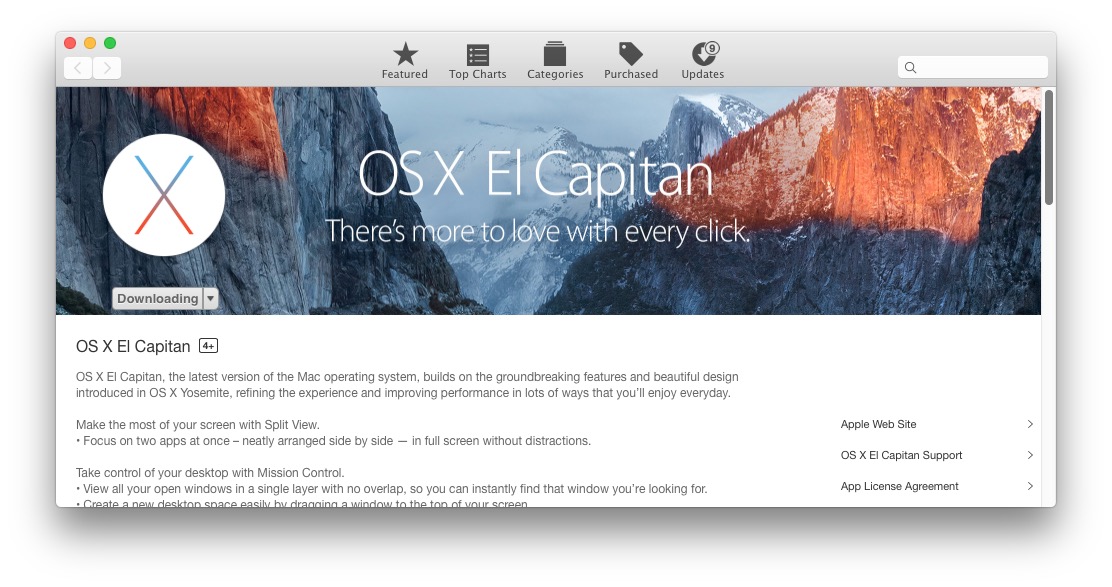
Wait for the download to finish (this could take some time).
Select it, and then on the right, click the partition tab.
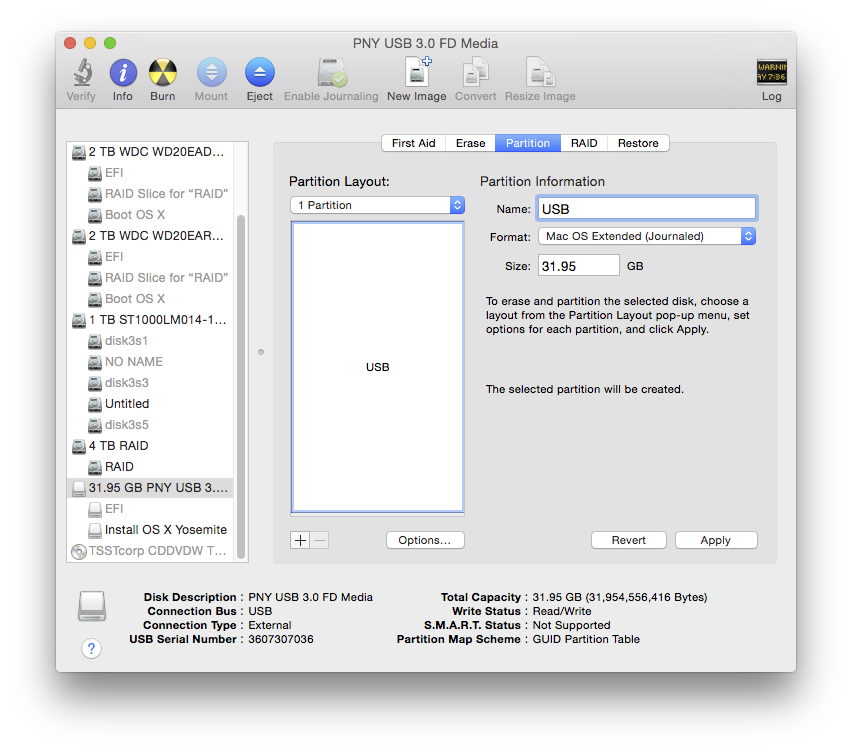
Click Apply to format the drive.
Run the following command in the Terminal (Applications/Utilities):
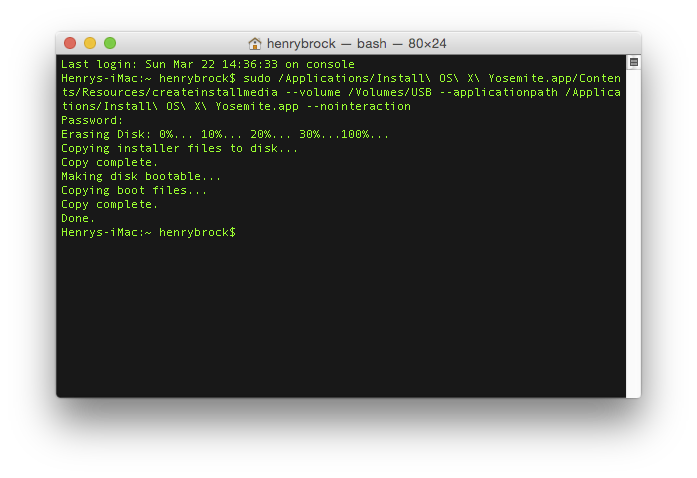
This process takes about 15 minutes. Go out for a quick run, or a hamburger, or both. When you come back, it should have finished.
There are 3 popular bootloaders to choose from.
Download the latest Clover installer from here.
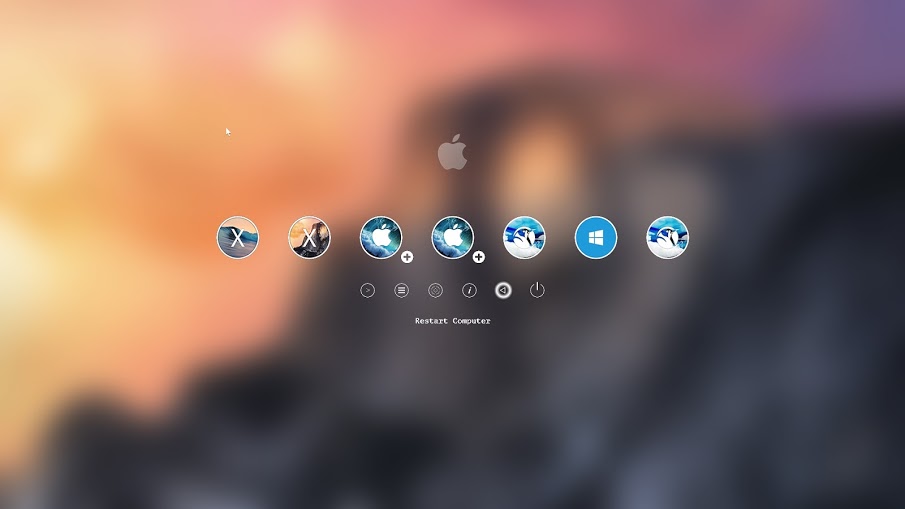
Use the arrow keys to select Boot OS X Install from Install OS X El Capitan (It should be selected by default). Press the spacebar and select Boot Mac OS X in verbose mode. Verbose mode means that you'll be able to see exactly what's going on under the hood as OS X attempts to boot up its installer. You'll be able to see the exact error message if booting fails.
Press Enter and cross your fingers. Clover will now boot the installer from your USB drive. This could take some time, in my case, it takes around 5 minutes (Don't worry -- the startup time is around 5 seconds after installing on an SSD).
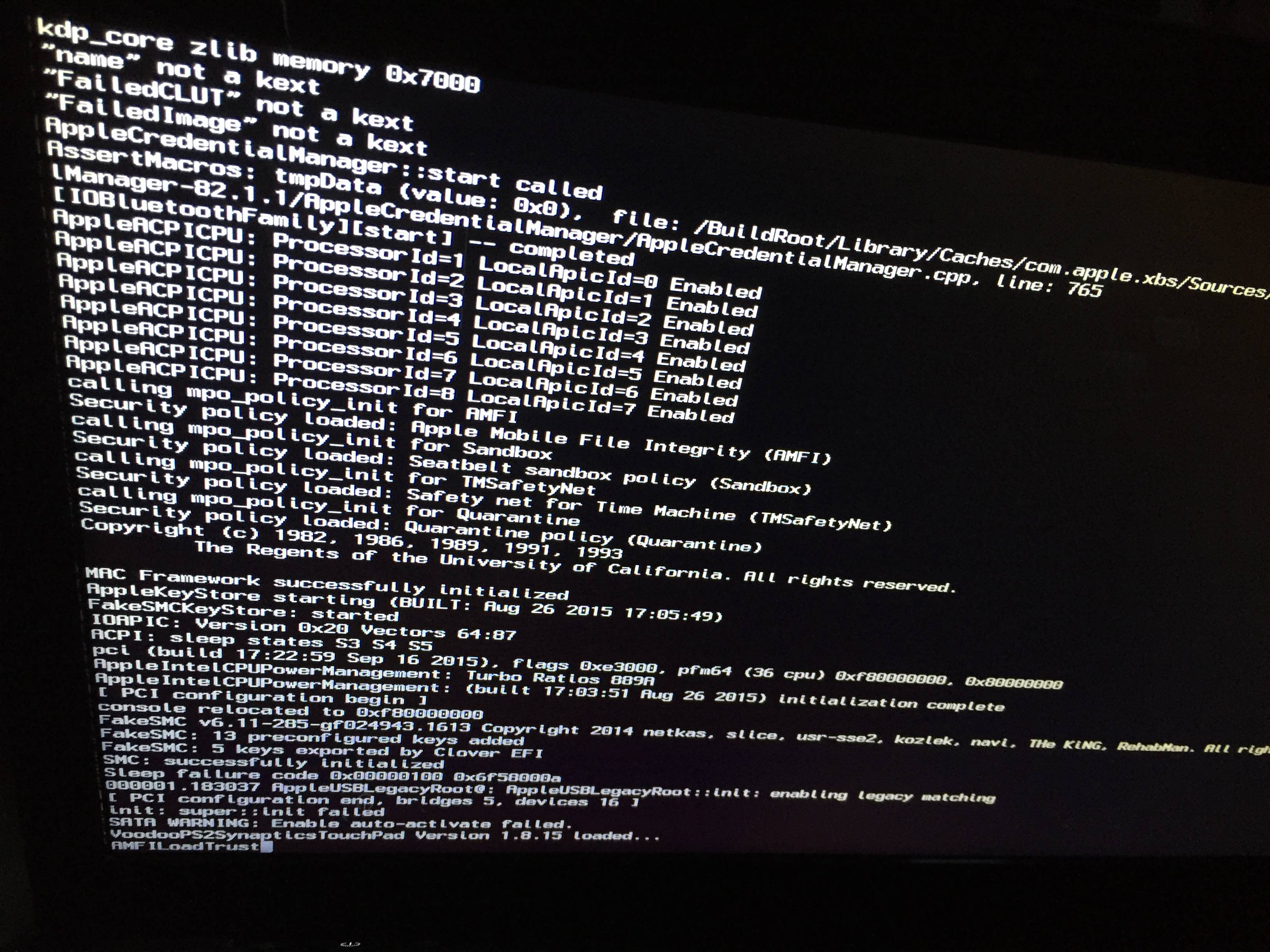
Once you find an additional kext that your system needs, you'd attempt to copy it to the EFI volume, only to discover that it's gone! Not to worry, it's just unmounted and hidden. Follow this guide to mount the hidden partition, and then, follow the Copy Essential Kexts section above to copy it to the USB drive's EFI partition.
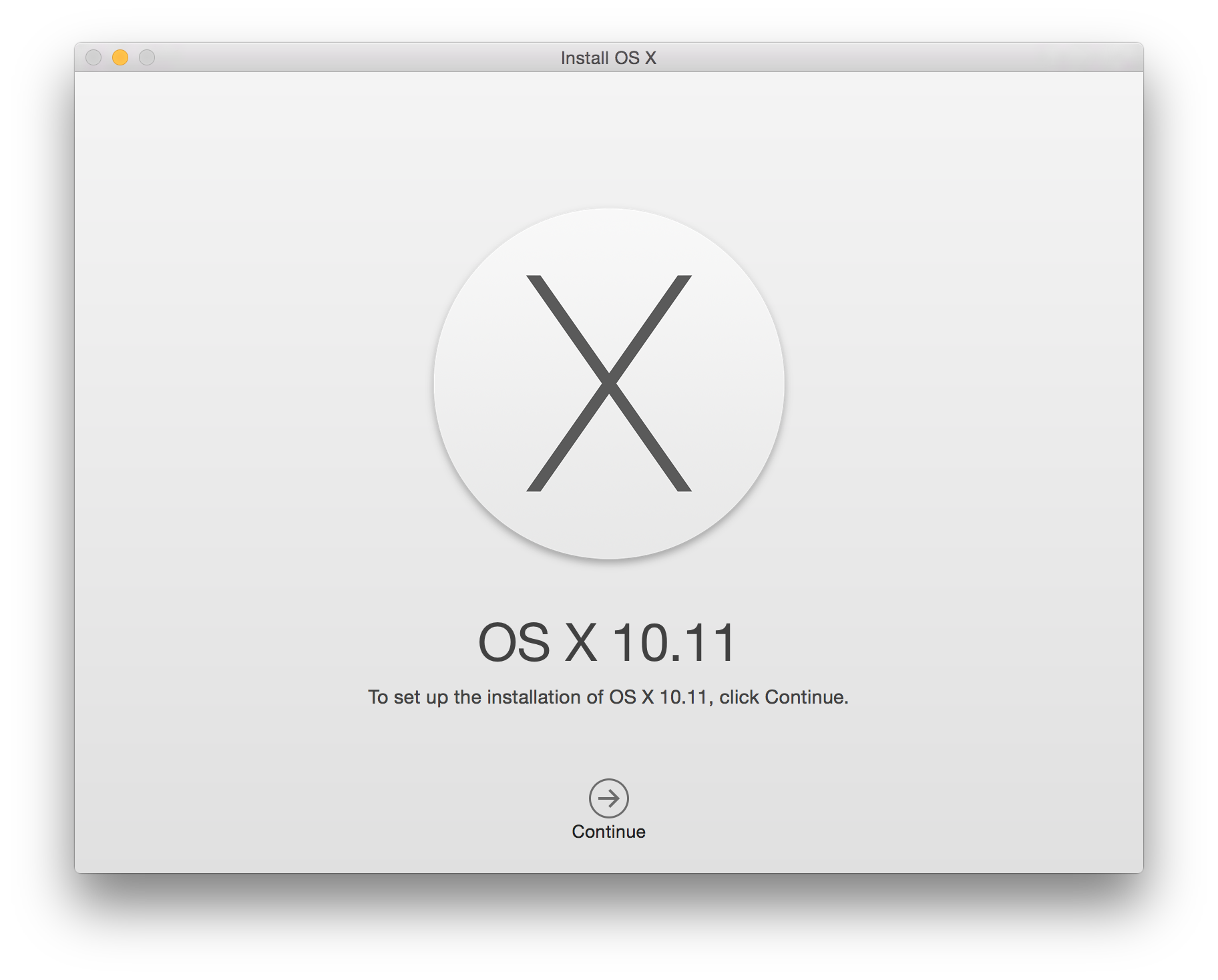
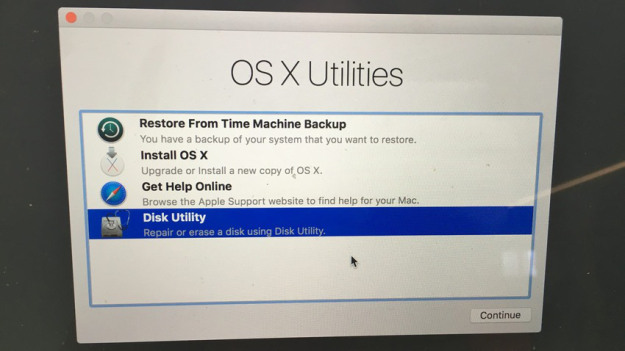
Click Continue, followed by Disk Utility.
Select the target drive to install to (not the USB drive!) and click the Erase button. Make sure to back up anything important on that drive, as it will be deleted forever.
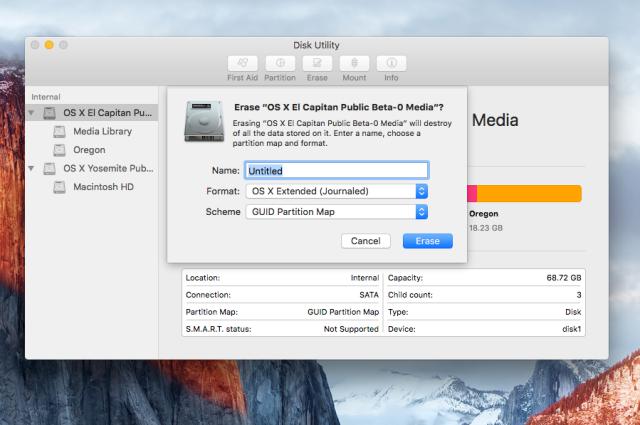
Click Erase to format the drive.
Click Show All Disks and select the drive you just formatted to install OS X on it. Finally, click Install.
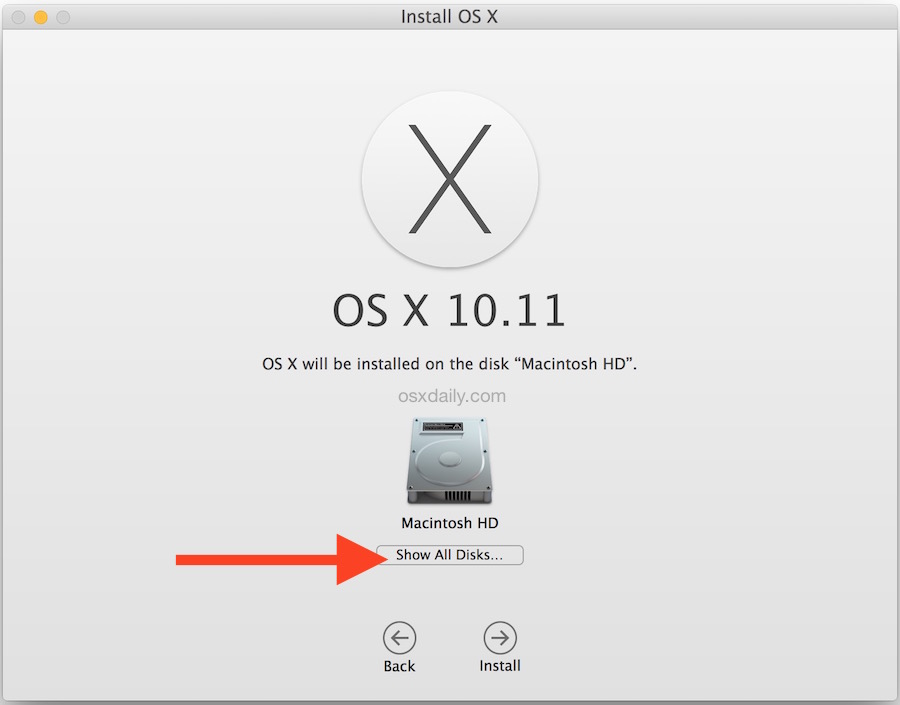
The process takes about 25 minutes. Be patient. For me, it hung at the end ("1 second remaining") for around 5 minutes. Don't be tempted to reset or cancel the installation.
When that's done, the system will reboot. Make sure to boot from the USB device again, and select Boot OS X Install from Install OS X El Capitan once again, in verbose mode. The installation is a two-part process that continues once you re-boot into the USB drive.
Finally, after about 25 more minutes, OS X El Capitan should be successfully installed on the target drive.
Press Enter and cross your fingers again. If all goes well, you'll be presented with the setup wizard:
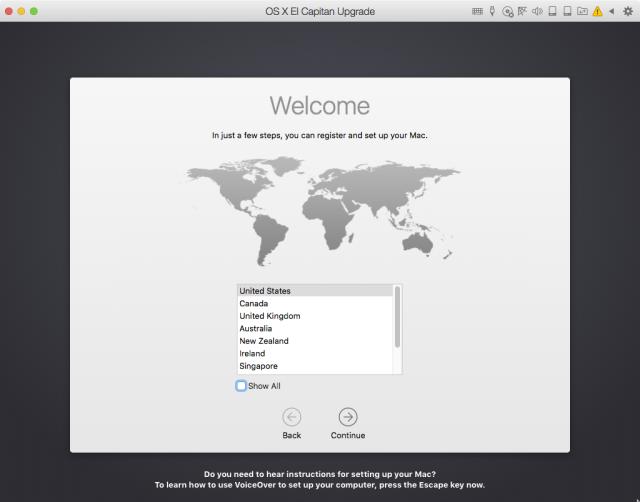
Take a minute to set up your new Hackintosh. Once you're done, there are a few things you need to do to finish off the installation.
Go back up to the Install Clover on Your USB Drive section and follow the steps again, but this time, select your El Capitan volume instead of the USB drive.
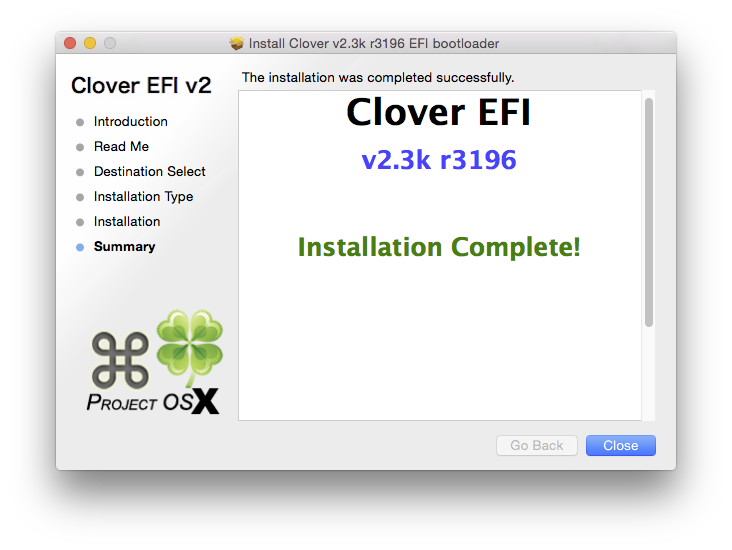
Once again, copy the essential kexts to the EFI partition that shows up after installing Clover.
Finally, make sure to add Clover EFI boot options which is possible by pressing Clover Boot Options in the Clover boot window (if there are 2 boot options -- find the one for your SATA drive). I literally spent 3 hours figuring out why Clover would not boot when I disconnected the USB drive before I figured out that I need to manually add the EFI boot options.
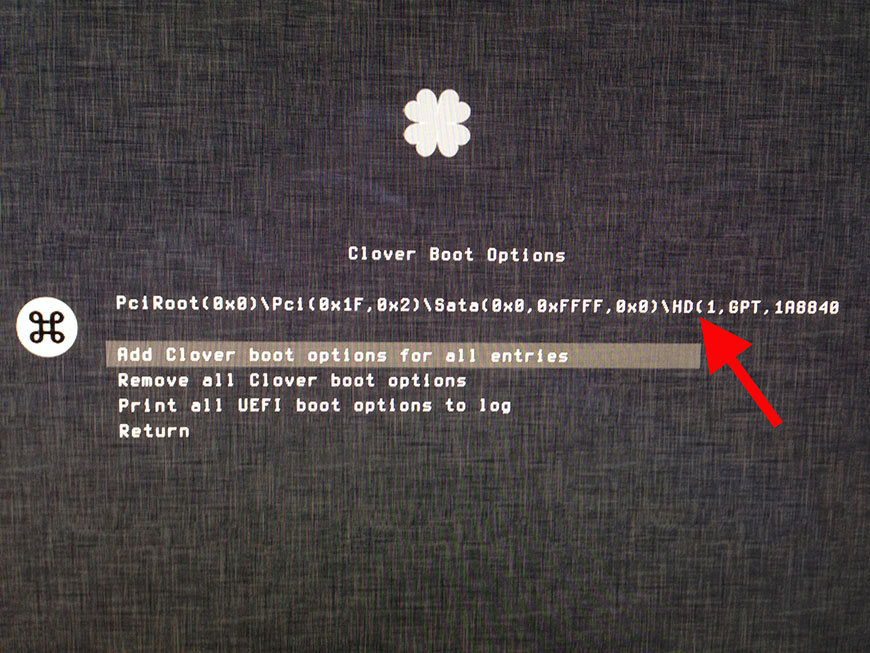
Now you'll be able to boot directly from the El Capitan hard drive, as it should be!
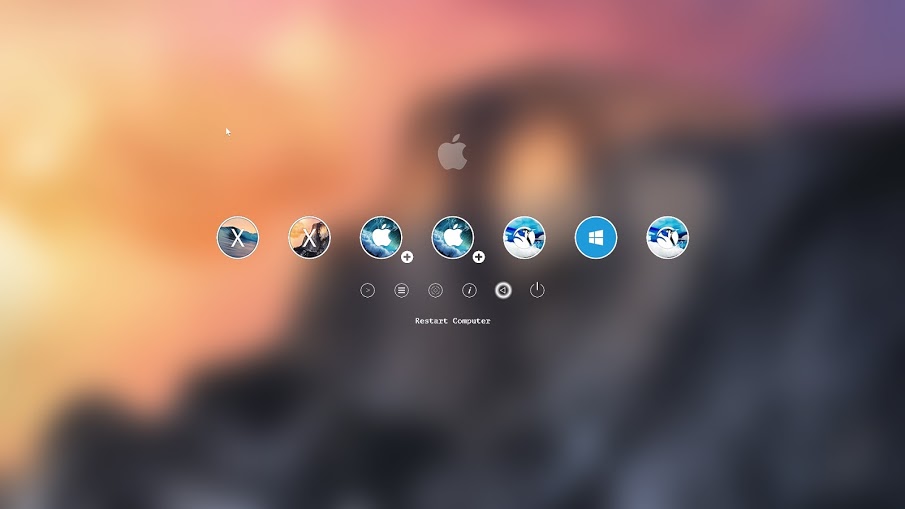
This is YosemiteLogin by xenatt:
credit : https://eladnava.com/install-os-x-10-11-el-capitan-on-hackintosh-vanilla/
Requirements
- An Intel-based PC with UEFI bios
- A USB flash drive with at least 16GB capacity
- A dedicated hard drive (SSD highly recommended)
- A computer running OS X (10.9 or later) for preparing the installation USB flash drive
Preparing the USB Installation Drive
First things first. We need to prepare a USB thumb drive that will contain the installation files as well as the bootloader and custom kexts for our specific Hackintosh build.Download El Capitan from the Mac App Store
Head over to your existing OS X environment running 10.9 or later and open the Mac App Store.Search for "El Capitan" and click Download. The download is completely free if you're running OS X 10.9+.
Wait for the download to finish (this could take some time).
Format the USB Drive
Open Disk Utility in Applications/Utilities and locate your USB device. Make sure you've backed up anything important on that drive as it will be erased forever.Select it, and then on the right, click the partition tab.
- Click Curent Layout and change it to 1 Partition.
- Set the Name to USB.
- Set the Format to Mac OS Extended (Journaled).
- Click Options and select GUID Partition Table.
Click Apply to format the drive.
Copy the Installation Files to the USB Drive
Now that we've downloaded the installation files from the Mac App Store and formatted our USB drive, let's copy the installation files to it.Run the following command in the Terminal (Applications/Utilities):
$ sudo /Applications/Install\ OS\ X\ El\ Capitan.app/Contents/Resources/createinstallmedia --volume /Volumes/USB --applicationpath /Applications/Install\ OS\ X\ El\ Capitan.app --nointeractionThis process takes about 15 minutes. Go out for a quick run, or a hamburger, or both. When you come back, it should have finished.
Installing a Bootloader
If you tried to boot from the USB drive as is after the previous step on a PC, it wouldn't work. We need a bootloader that makes it possible to boot OS X on x86 and x86_64 PCs.There are 3 popular bootloaders to choose from.
- Clover
- Chameleon
- Chimera
Clover is an open-source EFI-based bootloader created on Apr 4, 2011. It has a totally different approach from Chameleon and Chimera. It can emulate the EFI portion present on real Macs and boot the OS from there instead of using the regular legacy BIOS approach used by Chameleon and Chimera. For many, Clover is considered the next-gen bootloader and soon it will become the only choice since BIOS in being replaced by UEFI in every new motherboard. One big feature of Clover is that iMessage, iCloud, the Mac App Store works along with Find My Mac, Back To My Mac and FileVault since Clover can use the EFI partition. (Read more)
Install Clover on Your USB Drive
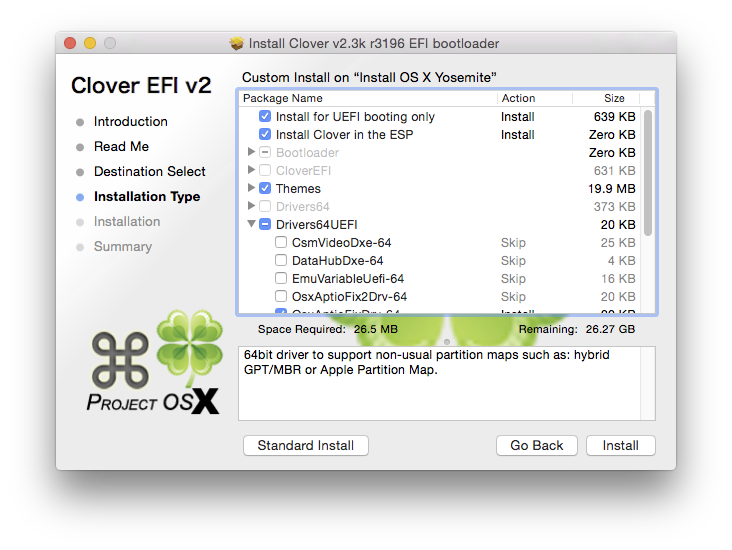
Installing Clover on your USB drive is relatively easy. It involves running an installation wizard and selecting some options.Download the latest Clover installer from here.
- Run the installer.
- Click Continue twice.
- Click Change Install Location and set it to your formatted USB drive.
- Click Customize and check the following options:
- [x] Install for UEFI booting only
- [x] Install Clover in the ESP
- [ ] Drivers64UEFI
- [x] OsxAptioFixDrv-64 - fixes memory map created by AMI Aptio EFI. Booting OS X is impossible otherwise.
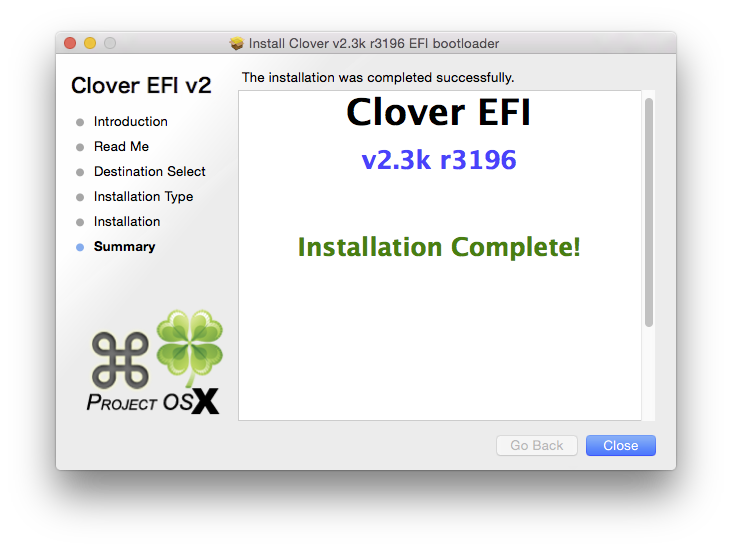
- Click Install and wait for the installation to finish. It shouldn't take more than a minute.
Copy Essential Kexts to the USB Drive
Next, we'll need to copy some kexts (kernal extensions, similar to drivers on Windows) to the USB drive.- FakeSMC.kext - open source SMC device driver/emulator developed by netkas. Tricks OS X into thinking it's installed on Apple hardware. Absolutely required for Hackintosh installation.
- NullCPUPowerManagement.kext - disables AppleIntelCPUPowerManagement.kext which may cause kernel panics when you try to boot from the USB drive. It's optional, copy it only if you get an AppleIntelCPUPowerManagement-related kernel panic.
- ApplePS2Controller.kext and AppleACPIPS2Nub.kext - adds support for PS2 devices (such as PS2 keyboard/mouse). They're optional, copy them only if you still use PS2 devices.
Install El Capitan
Now that the installation USB drive is ready, let's install OS X El Capitan!Boot from the USB Drive
Restart your computer and boot from the USB drive (Press Esc/F8/Del to access the boot selection menu).Use the arrow keys to select Boot OS X Install from Install OS X El Capitan (It should be selected by default). Press the spacebar and select Boot Mac OS X in verbose mode. Verbose mode means that you'll be able to see exactly what's going on under the hood as OS X attempts to boot up its installer. You'll be able to see the exact error message if booting fails.
Press Enter and cross your fingers. Clover will now boot the installer from your USB drive. This could take some time, in my case, it takes around 5 minutes (Don't worry -- the startup time is around 5 seconds after installing on an SSD).
Did it fail?
It's more than likely that the boot will fail. Don't panic (ha-ha), as kernel panics usually mean that you forgot to copy an essential kext to the EFI partition. Look up the exact error you're getting before the boot log comes to an end and search Google for a solution.Once you find an additional kext that your system needs, you'd attempt to copy it to the EFI volume, only to discover that it's gone! Not to worry, it's just unmounted and hidden. Follow this guide to mount the hidden partition, and then, follow the Copy Essential Kexts section above to copy it to the USB drive's EFI partition.
Format the Target Hard Drive
Once the installation wizard boots, the next step is to prepare the hard drive that you want to install OS X on.Click Continue, followed by Disk Utility.
Select the target drive to install to (not the USB drive!) and click the Erase button. Make sure to back up anything important on that drive, as it will be deleted forever.
- Set the Name to El Capitan.
- Set the Format to OS X Extended (Journaled).
- Set the Scheme to GUID Partition Map.
Click Erase to format the drive.
Install OS X to the Target Drive
Exit the Disk Utility and click Install OS X.Click Show All Disks and select the drive you just formatted to install OS X on it. Finally, click Install.
The process takes about 25 minutes. Be patient. For me, it hung at the end ("1 second remaining") for around 5 minutes. Don't be tempted to reset or cancel the installation.
When that's done, the system will reboot. Make sure to boot from the USB device again, and select Boot OS X Install from Install OS X El Capitan once again, in verbose mode. The installation is a two-part process that continues once you re-boot into the USB drive.
Finally, after about 25 more minutes, OS X El Capitan should be successfully installed on the target drive.
Boot into El Capitan via the USB Device
After the second reboot, boot from the USB device once again, but this time, select Boot OS X from El Capitan, and select verbose mode.Press Enter and cross your fingers again. If all goes well, you'll be presented with the setup wizard:
Take a minute to set up your new Hackintosh. Once you're done, there are a few things you need to do to finish off the installation.
Reinstall Clover on the Hackintosh Drive
In the previous step, we used Clover on our USB drive to boot our Hackintosh. This is fine, but most of us aren't going to keep that USB drive plugged in forever. Let's make it possible to boot El Capitan independently by reinstalling Clover on it.Go back up to the Install Clover on Your USB Drive section and follow the steps again, but this time, select your El Capitan volume instead of the USB drive.
Once again, copy the essential kexts to the EFI partition that shows up after installing Clover.
Finally, make sure to add Clover EFI boot options which is possible by pressing Clover Boot Options in the Clover boot window (if there are 2 boot options -- find the one for your SATA drive). I literally spent 3 hours figuring out why Clover would not boot when I disconnected the USB drive before I figured out that I need to manually add the EFI boot options.
Now you'll be able to boot directly from the El Capitan hard drive, as it should be!
Audio and Networking
If you're lucky, audio and networking will work right out of the box. If not, you're on your own from here. You'll need to research your exact hardware (by using System Information in Applications/Utilities) and searching Google to find the right kext or installer to make it work on El Capitan.Clover Themes
The default Clover theme is pretty ugly (no offense). Check out this theme database to improve Clover's appearance.This is YosemiteLogin by xenatt:
Enjoy!
That's it! Enjoy your new Hackintosh, and if you absolutely love it, consider buying a Mac!credit : https://eladnava.com/install-os-x-10-11-el-capitan-on-hackintosh-vanilla/